Build a chatbot that actually knows your company
Turn your internal documents into a searchable knowledge base and wire up a chat agent that answers questions from them, instead of guessing.
What this looks like
One step on screen at a time. Read it, do it, tap Next.
Build a chatbot that actually knows your company
Step 1 of 13
Set up the vector store index
In your Pinecone (or equivalent) account, create an index sized for your embedding model's output — 1536 dimensions if you're using OpenAI's text-embedding-3-small. Note the index name; you'
Checkpoint
An empty index exists and is visible in your Pinecone dashboard.
Before you begin
Tick these off as you sort them. Stopping halfway to create an account is how a fifteen-minute build becomes an hour.
0 of 9 ready
Ticks are saved on this device, so you can come back to them.
- Have ready
PDFs, Google Docs or plain text files covering the topics you want the agent to answer questions about. A handful of real documents is enough to test with.
- Account
This is where document chunks and their embeddings are stored so they can be searched by meaning rather than keyword.
Pinecone - Account
You can substitute local files or another storage provider, but this walkthrough uses Drive as the source.
- CredentialOptional
Optional but recommended, so colleagues can ask questions from a channel they already use.
- Know-how
In short: relevant chunks of your documents are fetched first, then handed to the model as context so its answer is grounded in your material rather than invented.
- Time
This is a two-workflow build — one to index documents, one to answer questions — so give yourself proper time.
The basics — ticked once, remembered everywhere
- Account
Either the hosted version or a self-hosted install. Everything here works the same on both — the only visible difference is the shape of your webhook URLs.
Create a workspace - Know-how
Adding a node, connecting two of them, and pressing Execute. If any of that is new, the free primer covers it in about ten minutes.
- Credential
You will paste at least one secret during setup. A password manager beats a notes app, and it stops you pasting a live key into a chat window by accident.
The shape of the workflow
The nodes you will end up with, left to right, in the order you add them.
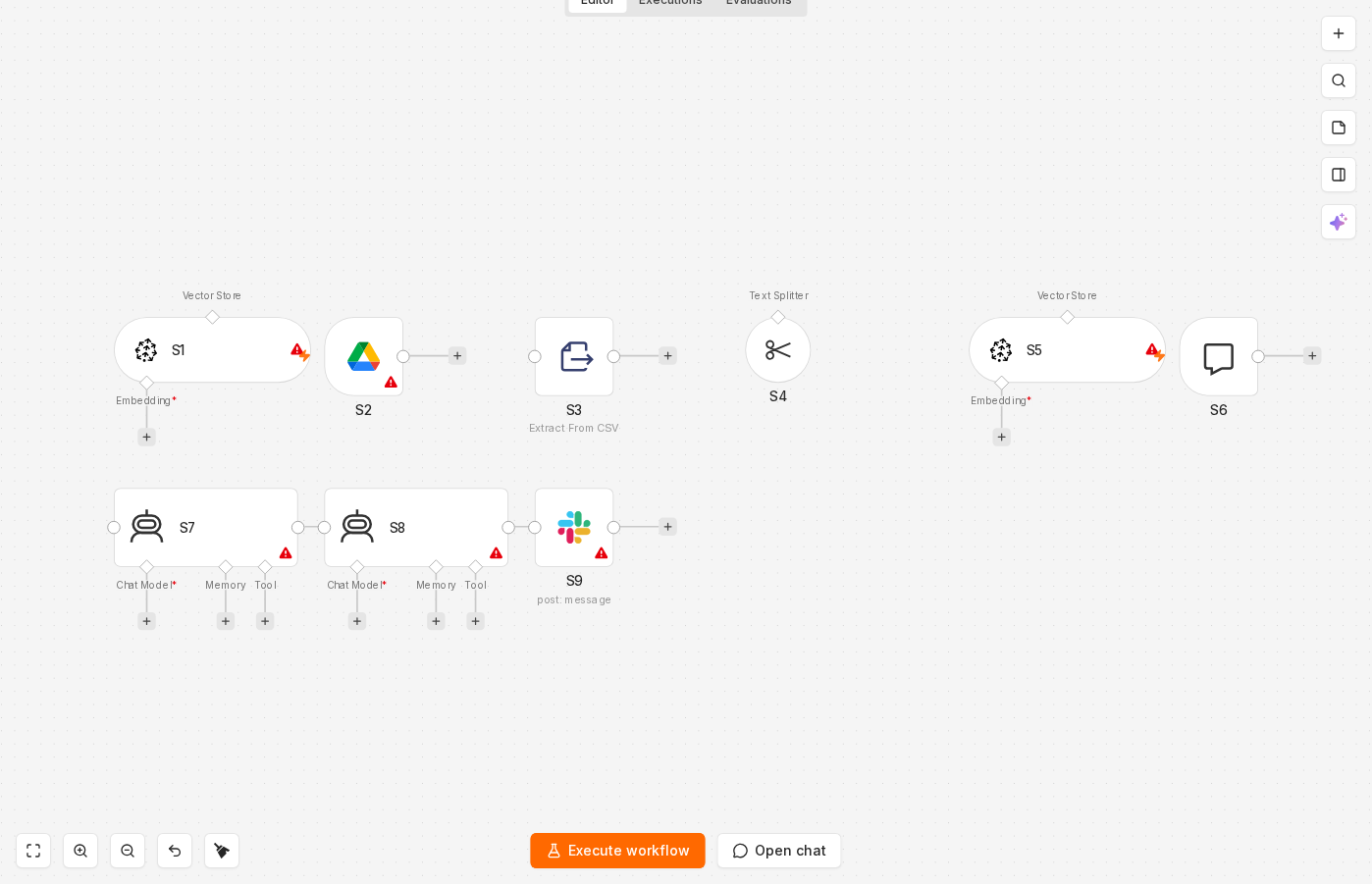 4 things to set here
- 1Pinecone — the trigger — everything starts here
- 2Google Drive Trigger — Build the indexing workflow trigger
- 3Extract from File — Download and extract the document text
- 4Text Splitter — Split the text into chunks
Skip the node hunting
Import a starter file with every node for this build already on the canvas, named after its step and wired in order, each one carrying a sticky note with the values to enter. You still connect your own accounts and fill the fields — that is what the walkthrough takes you through — but you never start at a blank canvas.
In n8n: Workflows → Import from file.
What you will build
Jump straight to any step, or print the list and tick it off beside your n8n tab.
- 1Set up the vector store index
- 2Build the indexing workflow trigger
- 3Download and extract the document text
- 4Split the text into chunks
- 5Embed and store each chunk
- 6Build the question-answering workflow
- 7Add the AI Agent node with a vector store tool
- 8Return citations alongside the answer
- 9Send the answer back to Slack
- 10Test with real questions, then activate both workflows
- 11Ask a question with a clear answer
- 12Ask a question the documents don't cover
- 13Update a source document and re-run indexing
If something goes wrong
Everything ready?
Start walkthrough