Score a CV against a job description with OpenAI
Download a CV from a direct link, extract its text, send it to OpenAI alongside your job description, and get back a structured match percentage with reasons the candidate does or doesn't fit.
What this looks like
One step on screen at a time. Read it, do it, tap Next.
Score a CV against a job description with OpenAI
Step 1 of 9
Start with the manual trigger
Create a workflow and add a When clicking 'Test workflow' manual trigger node. This template is designed to be run and inspected manually rather than fired automatically.
Checkpoint
The manual trigger node sits on the canvas ready to run.
Before you begin
Tick these off as you sort them. Stopping halfway to create an account is how a fifteen-minute build becomes an hour.
0 of 7 ready
Ticks are saved on this device, so you can come back to them.
- API key
The analysis node calls the OpenAI chat completions endpoint directly via HTTP Request using a predefined OpenAI credential, rather than a dedicated AI node.
OpenAI API keys - Have ready
The workflow expects a plain URL to a PDF (for example from Supabase storage, Dropbox, or another file host) rather than a file upload.
- Have ready
Paste the complete job posting into the Set Variables node — the more detail it has, the more useful the scoring will be.
- Time
The workflow is six nodes; most of the effort is wording the scoring prompt and JSON schema to match what you actually want back.
The basics — ticked once, remembered everywhere
- Account
Either the hosted version or a self-hosted install. Everything here works the same on both — the only visible difference is the shape of your webhook URLs.
Create a workspace - Know-how
Adding a node, connecting two of them, and pressing Execute. If any of that is new, the free primer covers it in about ten minutes.
- Credential
You will paste at least one secret during setup. A password manager beats a notes app, and it stops you pasting a live key into a chat window by accident.
The shape of the workflow
The nodes you will end up with, left to right, in the order you add them.
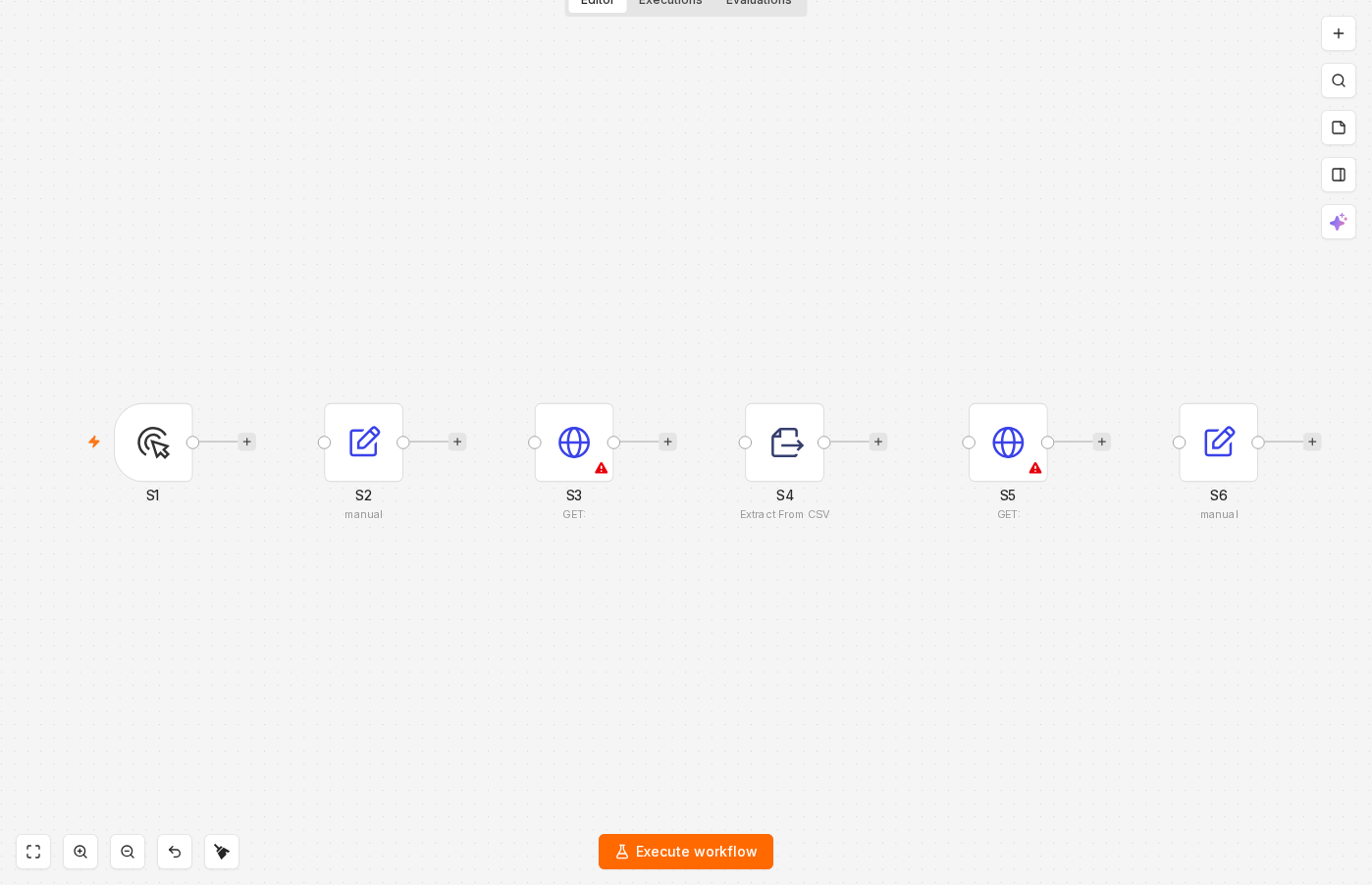 4 things to set here
- 1Manual Trigger — the trigger — everything starts here
- 2Edit Fields (Set) — Set the CV URL, job description, prompt and JSON schema
- 3HTTP Request — Download the CV file
- 4Extract from File — Extract the text from the PDF
Skip the node hunting
Import a starter file with every node for this build already on the canvas, named after its step and wired in order, each one carrying a sticky note with the values to enter. You still connect your own accounts and fill the fields — that is what the walkthrough takes you through — but you never start at a blank canvas.
In n8n: Workflows → Import from file.
What you will build
Jump straight to any step, or print the list and tick it off beside your n8n tab.
- 1Start with the manual trigger
- 2Set the CV URL, job description, prompt and JSON schema
- 3Download the CV file
- 4Extract the text from the PDF
- 5Send the CV and job description to OpenAI
- 6Parse the structured response
- 7Run it with the sample CV and job description
- 8Swap in a CV that clearly doesn't match the job
- 9Try a CV PDF that's actually a scanned image
If something goes wrong
Everything ready?
Start walkthrough