Get a Slack alert the moment a competitor changes their price
Check a list of competitor product pages on a schedule, log every price to Google Sheets, and post to Slack only when something actually moves.
What this looks like
One step on screen at a time. Read it, do it, tap Next.
Get a Slack alert the moment a competitor changes their price
Step 1 of 12
Trigger on a schedule
Create a workflow and add a Schedule Trigger running two or three times a day. Competitor prices rarely change more often than that, and checking too aggressively risks getting blocked.
Checkpoint
A Schedule Trigger sits on the canvas set to run a few times daily.
Before you begin
Tick these off as you sort them. Stopping halfway to create an account is how a fifteen-minute build becomes an hour.
0 of 9 ready
Ticks are saved on this device, so you can come back to them.
- Account
You need this to reliably fetch competitor pages that block plain requests. A free trial is enough to build and test this.
Bright Data - API key
Found in your Bright Data account settings once a zone is created.
- Have ready
Columns: ProductName, CompetitorURL, LastPrice. Fill LastPrice with today's price manually to start.
- Credential
This is where price-change notifications land, so pick a channel your team actually watches.
- Know-how
You'll need to identify roughly where the price sits in the page (a CSS selector or a nearby label) since pages vary in structure.
- Time
Most of the time is spent getting a reliable price extraction working for pages that aren't built for scraping.
The basics — ticked once, remembered everywhere
- Account
Either the hosted version or a self-hosted install. Everything here works the same on both — the only visible difference is the shape of your webhook URLs.
Create a workspace - Know-how
Adding a node, connecting two of them, and pressing Execute. If any of that is new, the free primer covers it in about ten minutes.
- Credential
You will paste at least one secret during setup. A password manager beats a notes app, and it stops you pasting a live key into a chat window by accident.
The shape of the workflow
The nodes you will end up with, left to right, in the order you add them.
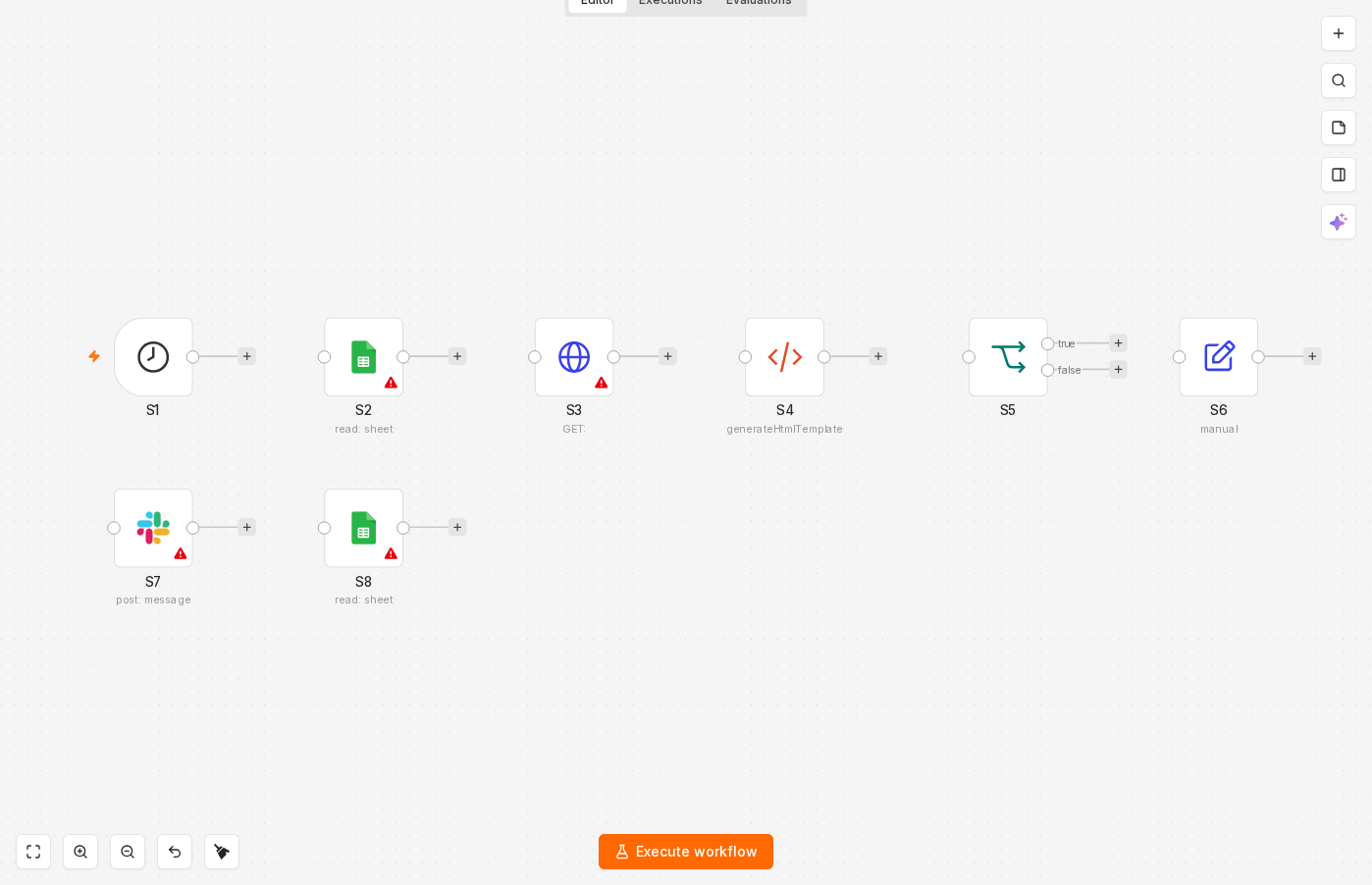 4 things to set here
- 1Schedule Trigger — the trigger — everything starts here
- 2Google Sheets — Read the list of products to check
- 3HTTP Request — Fetch each competitor page through Bright Data
- 4HTML Extract — Pull the price out of the page
Skip the node hunting
Import a starter file with every node for this build already on the canvas, named after its step and wired in order, each one carrying a sticky note with the values to enter. You still connect your own accounts and fill the fields — that is what the walkthrough takes you through — but you never start at a blank canvas.
In n8n: Workflows → Import from file.
What you will build
Jump straight to any step, or print the list and tick it off beside your n8n tab.
- 1Trigger on a schedule
- 2Read the list of products to check
- 3Fetch each competitor page through Bright Data
- 4Pull the price out of the page
- 5Compare against the last known price
- 6Work out direction and size of the change
- 7Post the alert to Slack
- 8Update the sheet with today's price
- 9Activate the workflow
- 10Force a fake price change
- 11Run it twice in a row with no real change
- 12Test a broken URL
If something goes wrong
Everything ready?
Start walkthrough