Find local businesses, scrape their site, and email each one a personalised opener
Have AI generate Google Maps search queries for the kind of business you want to reach, scrape each result's website to find and verify an email address, pull a clean copy of the site's content, then let an LLM chain write a genuinely personalised email and send it through Gmail with a random delay between sends.
What this looks like
One step on screen at a time. Read it, do it, tap Next.
Find local businesses, scrape their site, and email each one a personalised opener
Step 1 of 23
Start the run with the manual trigger
Create a workflow and add a Manual Trigger node named "MANUAL TRIGGER: Start Workflow". This template is designed to be run in controlled batches rather than left on an automatic schedule, s
Checkpoint
A Manual Trigger node sits at the start of the canvas.
Before you begin
Tick these off as you sort them. Stopping halfway to create an account is how a fifteen-minute build becomes an hour.
0 of 9 ready
Ticks are saved on this device, so you can come back to them.
- API key
Used twice: once to turn a plain description of your target customer into a set of Google Maps search queries, and again inside the LLM Chain that writes each personalised email.
OpenAI API keys - API key
The Search Google Maps HTTP Request node uses this to look up businesses matching each AI-generated query and return their listed websites.
- Credential
Used to fetch a clean, readable version of each prospect's website — much easier for the LLM to work from than raw HTML.
- Account
This is the mailbox that actually sends the outreach emails, so make sure it has real sending history before running this at volume.
- Know-how
This workflow scrapes public business listings and websites, then emails them cold. Check what consent and disclosure rules apply to you before sending at scale.
- Time
There are 29 nodes here across multiple nested loops — most of the time goes into wiring the loops correctly, not the logic itself.
The basics — ticked once, remembered everywhere
- Account
Either the hosted version or a self-hosted install. Everything here works the same on both — the only visible difference is the shape of your webhook URLs.
Create a workspace - Know-how
Adding a node, connecting two of them, and pressing Execute. If any of that is new, the free primer covers it in about ten minutes.
- Credential
You will paste at least one secret during setup. A password manager beats a notes app, and it stops you pasting a live key into a chat window by accident.
The shape of the workflow
The nodes you will end up with, left to right, in the order you add them.
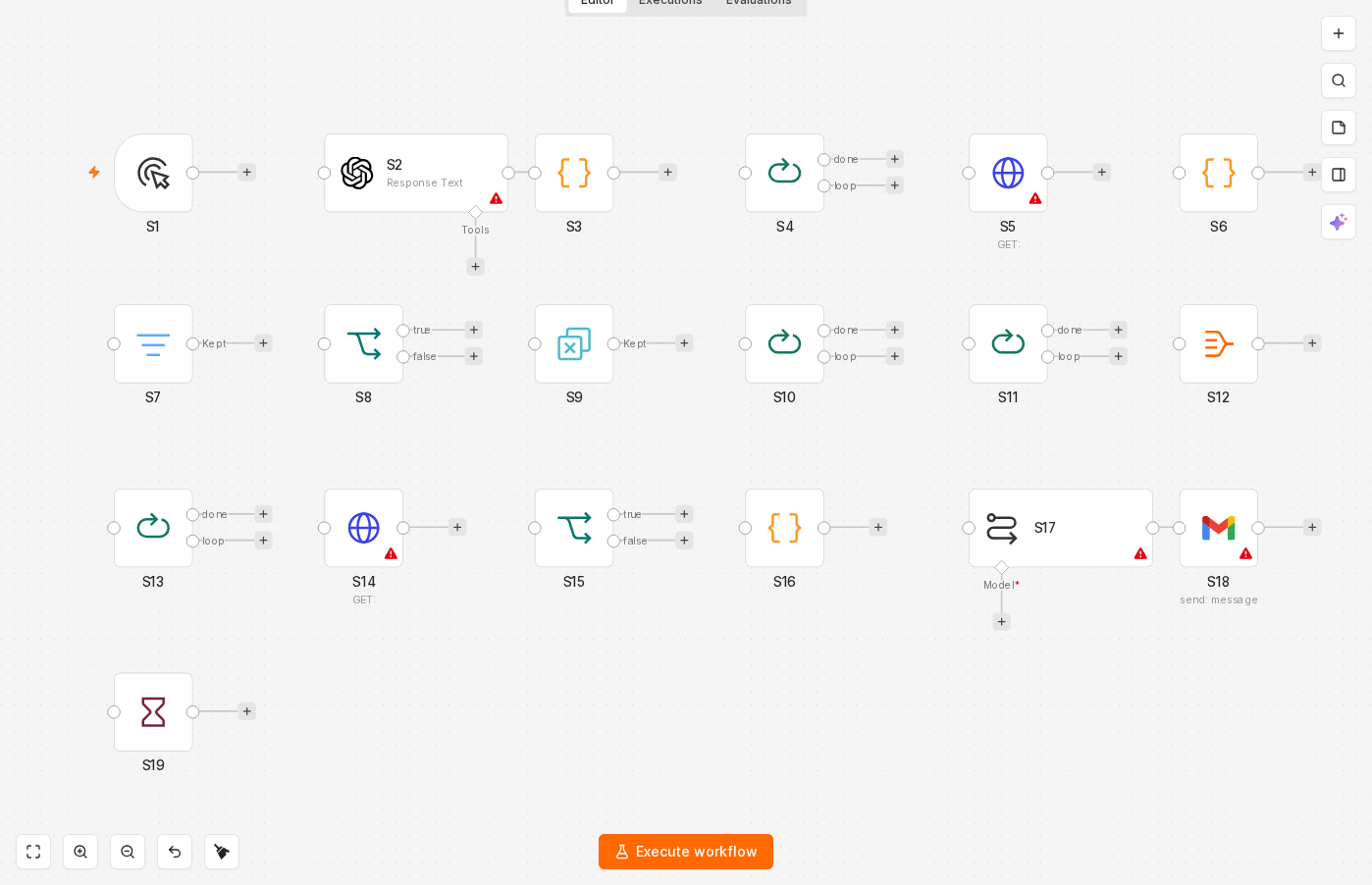 4 things to set here
- 1Manual Trigger — the trigger — everything starts here
- 2OpenAI — Generate Google Maps Queries (OpenAI)
- 3Code — Process AI-Generated Queries
- 4Loop Over Items (Split In Batches) — Loop Through Search Queries and Wait Before Google Search
Skip the node hunting
Import a starter file with every node for this build already on the canvas, named after its step and wired in order, each one carrying a sticky note with the values to enter. You still connect your own accounts and fill the fields — that is what the walkthrough takes you through — but you never start at a blank canvas.
In n8n: Workflows → Import from file.
What you will build
Jump straight to any step, or print the list and tick it off beside your n8n tab.
- 1Start the run with the manual trigger
- 2Generate Google Maps Queries (OpenAI)
- 3Process AI-Generated Queries
- 4Loop Through Search Queries and Wait Before Google Search
- 5Search Google Maps
- 6Extract URLs from Google Search
- 7Filter Out Google/Schema URLs
- 8Check if URL Exists
- 9Remove Duplicate URLs
- 10Loop Through Unique URLs and Fetch Website Content
- 11Loop Through Website Content Batches and Extract and Filter Emails
- 12Aggregate Email Lists, Split Emails into Items, Remove Duplicate Emails
- 13Loop Through Unique Emails
- 14Extract Domain from Email and Scrape Website Content (Jina.ai)
- 15Check for Scraping Error
- 16Truncate Website Content
- 17Generate Personalized Email (LLM Chain)
- 18Send Email via Gmail
- 19Generate Random Delay and Wait Between Emails
- 20Loop back for the next prospect
- 21Run with one narrow search query first
- 22Point Gmail at your own address temporarily
- 23Deliberately break one URL
If something goes wrong
Everything ready?
Start walkthrough