02 / 12Edit Fields (Set)
Set your business configuration
Add a Set node named Business Configuration holding fixed values the rest of the workflow reuses — your business name, the tone you want AI replies to use, your Slack webhook URL, and a notification email.
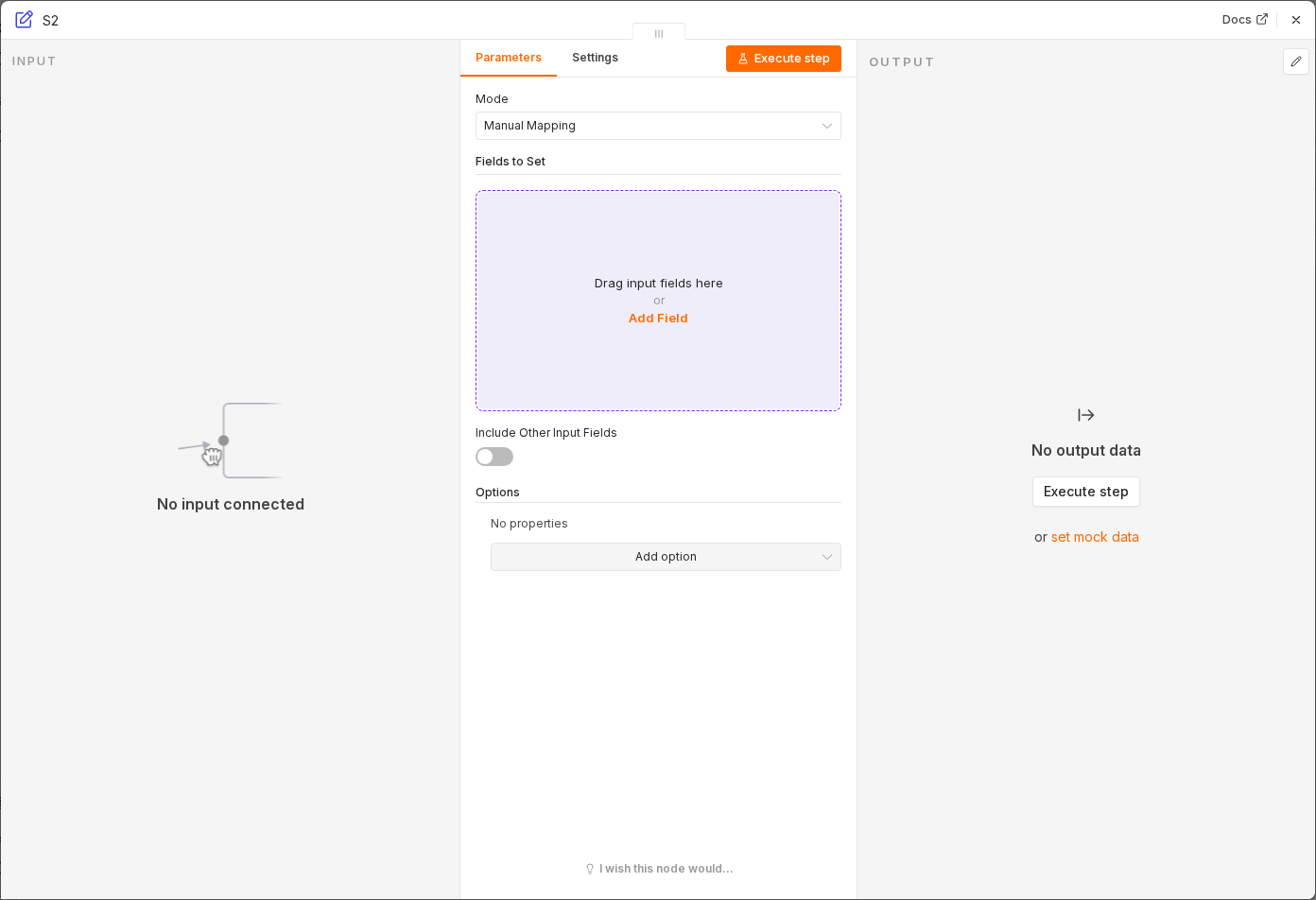 6 things to set here
- 1Open the Edit Fields (Set) node — double-click it on the canvas
- 2businessName — copy the value below
- 3responseTone — copy the value below
- 4slackWebhookUrl — paste as an expression
- 5notificationEmail — paste as an expression
- 6Check before moving on — The item now carries businessName, responseTone, slackWebhookUrl and notificationEmail alongside the original review data.
businessName
Your Business Name
responseTone
professional and friendly
slackWebhookUrlexpression
{{ $env.SLACK_WEBHOOK_URL }}notificationEmailexpression
{{ $env.NOTIFICATION_EMAIL }}Tip
Keeping these as named fields on one node, rather than scattered expressions, means changing your Slack channel later only means editing one place.
Checkpoint
The item now carries businessName, responseTone, slackWebhookUrl and notificationEmail alongside the original review data.