04 / 12Google Sheets
Log the lead to your sheet
Add a Google Sheets node with the Append Row operation, pick your tracking sheet, and map each column. Set Status to new — the follow-up branch reads this later.
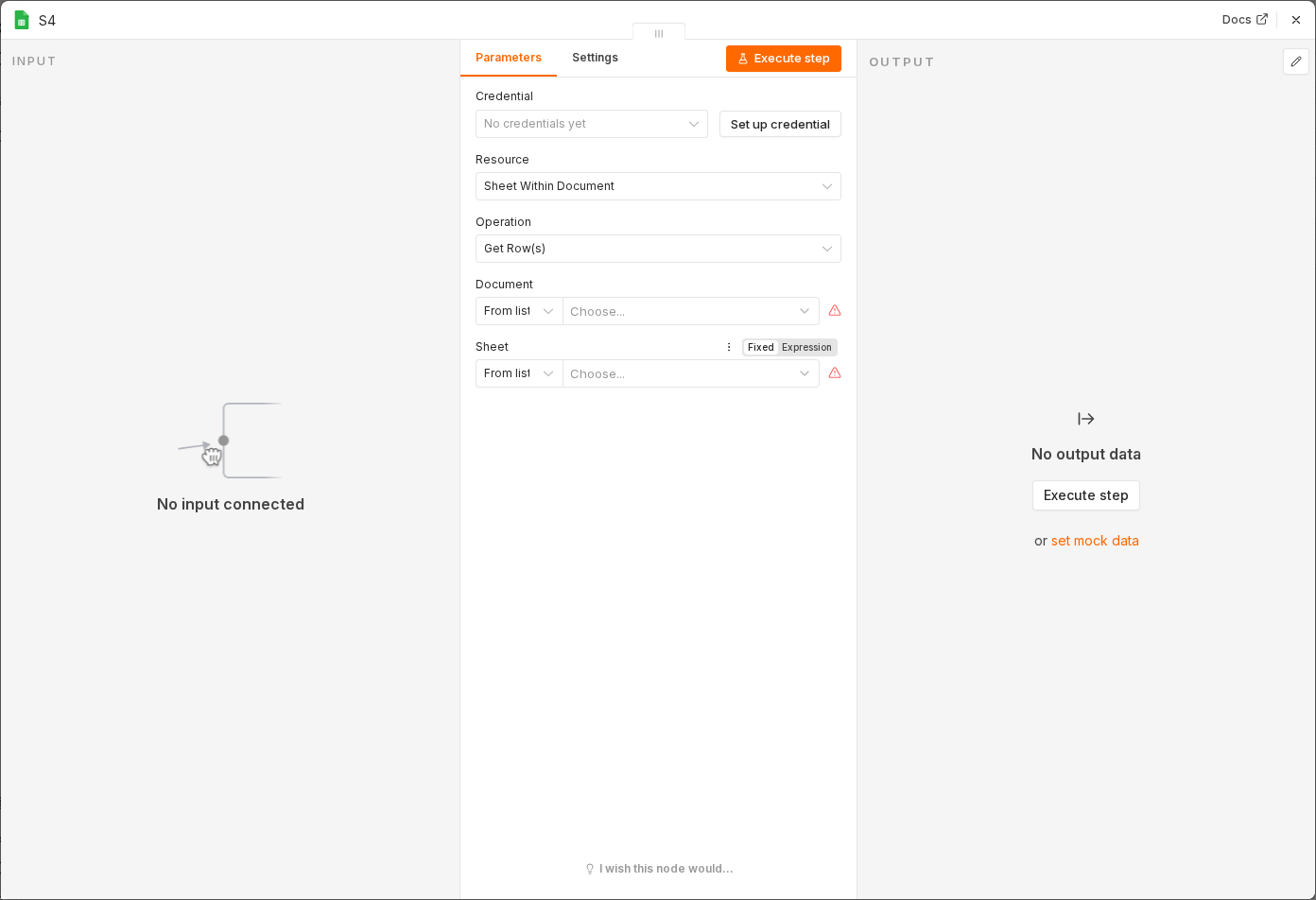 6 things to set here
- 1Open the Google Sheets node — double-click it on the canvas
- 2Operation — copy the value below
- 3Name — paste as an expression
- 4Email — paste as an expression
- 5Message — paste as an expression
- 6Check before moving on — A new row appears in the sheet with Status set to new.
Operation
Append Row
Nameexpression
{{ $('Edit Fields').item.json.firstName }}Emailexpression
{{ $('Edit Fields').item.json.email }}Messageexpression
{{ $('Edit Fields').item.json.message }}Status
new
Dateexpression
{{ $now.toISO() }}Tip
The $('Edit Fields') syntax reaches back to an earlier node — needed because Gmail's output replaces your fields.
Checkpoint
A new row appears in the sheet with Status set to new.